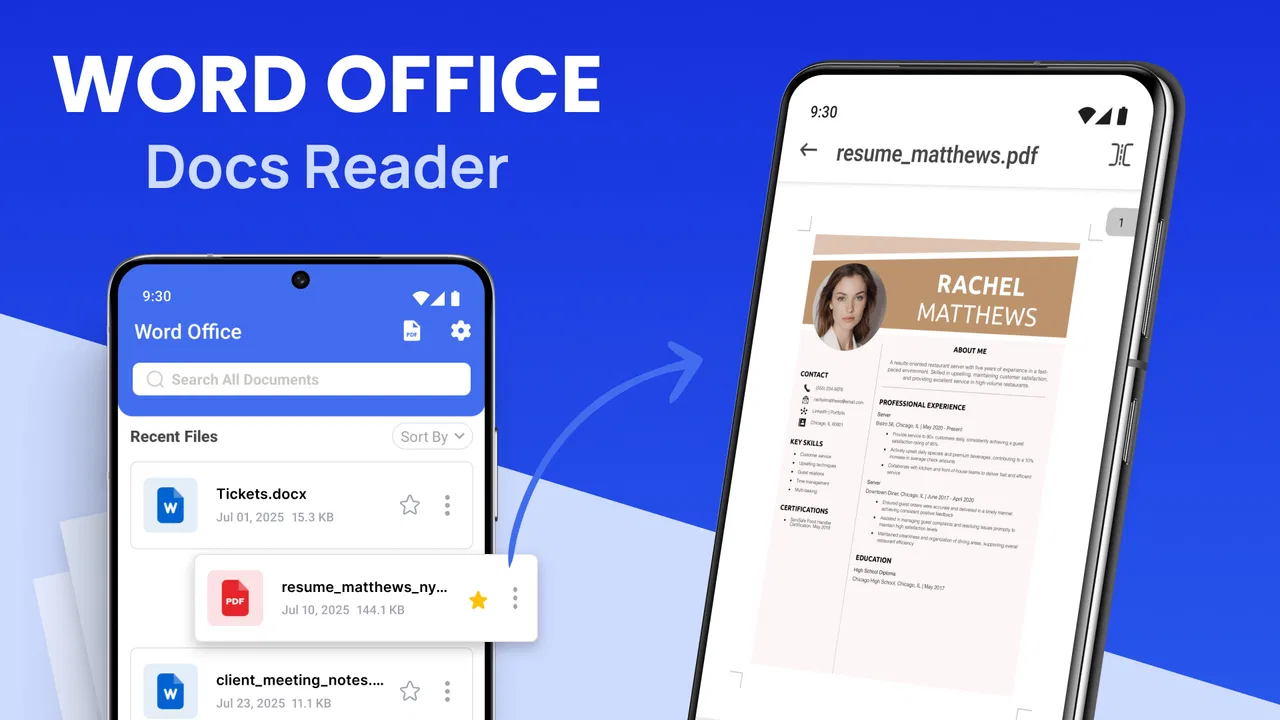
Word Office: Docs Reader
- 4.8
- Rating
- 5.00M
- Installs
- Free
- Price
 Analysis by App-foxy
I spent time with Word Office: Docs Reader as a practical mobile document tool rather than treating it like a full desktop replacement. It is aimed at people who need to read, sync, edit, and share Word files from an Android phone or tablet, and that focus is immediately clear. The app sits in the productivity category, comes from Galaxy studio apps, and is free to install for everyone. Its appeal is simple: when a document arrives while I am away from my computer, I can open it in a familiar office-style environment instead of waiting until I get back to a larger screen.
That convenience matters more than it may sound. A document reader is often used in small moments: checking a meeting outline in a hallway, correcting a paragraph before sending it, or reviewing an attachment during a commute. In those situations, I do not need a sprawling suite with every advanced desktop function. I need a file to open cleanly, text to remain readable, and basic changes to be manageable without a long setup process. This app makes sense when that is the job.
How Word Office: Docs Reader feels in its current form
The current release is version 2.1.0, and the app has already reached over one million installs. Its average rating is 4.8 from around eighteen thousand ratings, which suggests that the basic promise works well for a large group of users. I would not treat that rating as proof that every document workflow is perfect, but it does match my general impression: the app is easy to understand and useful for everyday Word-file handling.
You May Also Like

 Blood Strike: 2.5 Anniversary
Blood Strike’s Loadouts Turn Every Drop Into a Tactical Gamble
A close look at Blood Strike’s custom loadouts: how fast access to signature weapons reshapes its battle royale rhythm, rewards preparation, and narrows the gap between fights.

 Pandora - Music & Podcasts
Pandora’s Music Is Easy to Start, but Harder to Recover
Pandora’s strength is its low-effort path from a seed to a station. Its weak spot is how much confidence it asks you to place in connection, setup, and quiet recovery.

 8 Ball Pool
 Is Built on Rivalries, Rematches, and Routine
A close look at the rivalries, rematches, shared routines, and unanswered safety questions that turn a quick pool match into a persistent mobile community.

 Samsung Music
’s Quiet Strength Is Playing What You Already Own
Its reach comes less from spectacle than from dependable access to a personal library. That simplicity is both the app’s strongest retention engine and its ceiling.

 AccuWeather: Weather Radar
AccuWeather Review: A Quick, Clear Forecast for Everyday Decisions
For everyday plans, the best forecast is the one you can understand quickly. AccuWeather makes rain timing, radar, and local conditions easy to act on, with a few trade-offs.

 Hill Climb Racing
Why Hill Climb Racing Still Turns Crashes Into One More Run
A tiny car, a bumpy hill and one more upgrade: Hill Climb Racing keeps resurfacing because its simple chaos makes every near-miss feel personal.
More From Our News Desk



The first thing I noticed is that its value depends on reducing friction. On a phone, document work can quickly become awkward because menus compete with the page, the keyboard takes up space, and small formatting controls are easy to miss. A good mobile office app therefore needs to make the common actions obvious while keeping the document itself readable. Word Office: Docs Reader is most convincing when I use it for short reviews, light corrections, and sharing rather than for building a long, heavily formatted report from scratch.
That distinction is important. I see this as a companion for mobile document work, not as a replacement for a full desktop word processor. If I am preparing a complex file with many layout elements, precise page breaks, or demanding formatting, I would still prefer a larger display and a more established desktop-oriented suite. On a phone, the app is better suited to the last-mile tasks that happen after a document has already been created.
The free price makes it approachable for casual users, students, families, and small teams that only occasionally handle Word files. There are in-app purchases ranging from $0.99 to $99.99 per item, so I would check the purchase screens carefully before relying on the app for a long-term workflow. The free entry point is helpful, but the presence of optional paid items means that users should understand which tools are available without payment before moving important work into the app.
Reading is where the mobile format makes the most sense
For reading, the app solves a very ordinary problem well: Word documents are frequently used as containers for information that someone needs to inspect quickly. That might be a school handout, a draft contract, a travel plan, or instructions sent by a colleague. I found the phone format especially useful when I wanted to check the wording of a file without opening a laptop.
There is also a practical difference between reading and editing on a small screen. Reading can be done in short bursts, while editing demands more attention. I could review a document while standing in a queue, but I would not choose that moment to rewrite several pages. This is not a flaw unique to the app; it is a limitation of mobile document work. The sensible approach is to use the reader for quick inspection and reserve major revisions for a larger workspace.
A useful habit is to read the entire document once before changing anything. On a phone, it is easy to jump directly to a sentence and lose its surrounding context. I found that making a mental note of the section first, then returning to edit, reduced accidental changes. This kind of workflow is more reliable than trying to perform every task in one rushed pass.
Editing works best for focused corrections
The editing side is most valuable when the change is specific. Correcting a name, updating a date, fixing a typo, or adding a short paragraph is realistic on a phone. I would also use it to respond to last-minute feedback when the document is already mostly complete. The smaller screen encourages me to keep edits narrow, which can actually be an advantage when I need to avoid unnecessary rewriting.
Long-form composition is a different story. Typing several pages with a phone keyboard is tiring, and the document view leaves less room for seeing the overall structure. If I were writing an essay, proposal, or detailed report, I would draft on a computer and use this app for review. That division of labor gives the app a clear role instead of asking it to do something mobile devices are naturally less comfortable doing.
One non-obvious benefit of this approach is version discipline. When I use a phone only for targeted corrections, I am less likely to make broad changes without checking the original. Before editing, I recommend saving or retaining the earlier copy, especially when the file is shared with other people. Mobile editing is convenient, but convenience can encourage quick taps, and a backup makes those moments less stressful.
Syncing and sharing need a deliberate routine
The idea of syncing is particularly useful for people who move between devices. A document may begin on a work computer, be reviewed on a phone, and then be sent to someone else. The app is designed around that kind of anywhere-access workflow, but I would still build a simple routine around file names and copies. A clear name such as “project draft reviewed” is more helpful than relying on memory after several edits.
Sharing is not only a final button press; it is also a question of what version is being sent. Before sharing, I would reopen the edited file, scan the first and last sections, and confirm that the intended changes are present. This extra check is worthwhile because mobile workflows often involve several copies in downloads, messaging apps, and cloud folders. The app can make the document available, but good file organization still depends on the user.
For a family or small group, this can be enough for simple collaboration. A parent might review a school form, a volunteer could update an event document, and a freelancer could send a corrected draft while away from a desk. For a larger team that needs comments, tracked revisions, detailed access control, or a shared editing history, I would compare it with a dedicated cloud office platform before making it the central workspace.
What the latest release means for people already using it
The current version gives existing users a clear reference point: version 2.1.0 is the release to evaluate today. I would judge the app by how reliably it handles the everyday loop of opening, reviewing, making a small change, and sharing. That loop is more important than a long list of theoretical capabilities because it is where most mobile office use actually happens.
The release timing also places the app in a relatively early stage of its public life, having been released on April 10, 2025. That makes the strong install count and high average rating notable, but it also means I would keep expectations measured. A newer productivity tool can be pleasant and capable while still developing the depth, polish, and compatibility that long-established office suites have built over many years.
For someone already using an earlier version, the sensible upgrade question is not simply whether the number has changed. I would check whether the tasks I perform most often feel smoother in the current release: opening the files I receive, moving through pages, placing the cursor accurately, saving edits, and sharing the correct copy. If those actions are dependable, the update has practical value even without dramatic visual changes.
New users should approach the app in the same way. Start with a non-critical document and test the complete workflow from opening to sharing. This is more revealing than reading a feature list because it exposes the small points that matter in real life, such as whether the document remains comfortable to read, whether editing feels manageable, and whether the saved result is easy to locate.
Where it fits beside familiar alternatives
Compared with a traditional desktop word processor, Word Office: Docs Reader wins on immediacy and portability. I can use it in places where carrying a laptop would be excessive. It is also less intimidating for someone who only needs to inspect or lightly adjust a document. The trade-off is that a phone cannot offer the same spacious editing surface or the same comfort for precise layout work.
Compared with a cloud-first office suite, the main question is workflow rather than brand familiarity. Cloud platforms are often better for simultaneous collaboration, comments, and organized team storage. This app is more appealing when the priority is opening Word documents directly on a mobile device and handling practical changes without committing to a broad collaborative system.
Compared with a dedicated file viewer, it offers a more active role because the purpose is not limited to reading. That makes it a better choice for someone who regularly needs to correct or share documents. On the other hand, a lightweight viewer may be preferable for a user who never edits and wants the simplest possible way to inspect attachments.
My advice is to choose based on the most demanding task you perform regularly, not the easiest one. If your hardest job is checking a document and changing a sentence, this app is a sensible fit. If your hardest job is managing a complex team document with extensive revision history, another office platform is likely to serve you better.
Everyday scenarios where it earns its place
Imagine receiving a revised event schedule while you are away from your desk. I would open the document, check the changed time, correct a small wording issue, and send the updated copy to the organizer. That is a realistic mobile workflow: short, focused, and valuable because waiting for a computer would slow everyone down.
Another example is a student reviewing an assignment outline before class. The student can read the structure, make a few notes or corrections, and share the document with a study partner. The app is useful here because the document remains available during the gaps between larger study sessions. It does not need to become the entire writing environment to be helpful.
A freelancer might use it to inspect a client brief, confirm a requested change, and return a corrected document from a café or while traveling. In that situation, the strongest feature is not advanced formatting; it is the ability to keep a small but important task moving. I would still do a final quality check on a larger screen when the document affects a contract, publication, or formal submission.
One practical tip is to separate “review” from “rewrite.” Use the phone to identify what needs attention, then make only the changes that are genuinely urgent. This reduces the chance of overlooking layout problems that are difficult to see on a compact display. It also keeps the app in the role where it feels most comfortable.
Remaining gaps and the users who should skip it
The largest limitation is the physical size of the mobile workspace. Even a well-designed document app cannot make a phone keyboard feel like a full keyboard or make a small display show an entire page at once. Users who produce long documents every day may become frustrated by the constant zooming, cursor placement, and movement between text and controls.
I would also be cautious about using it as the only tool for high-stakes documents until I had tested the exact files involved. Word documents can contain unusual formatting, embedded elements, or carefully arranged layouts. A file that looks fine in one environment may need a final check elsewhere. For important work, I would open the finished copy on the device or program used for submission.
The optional purchase range is another reason to approach the app deliberately. Free access is attractive, but users who need additional capabilities should review the cost of those items before building a workflow around them. Someone who wants a completely predictable, one-time desktop-style purchase may prefer a different product model.
I would skip this app if I mainly need simultaneous team editing, detailed revision management, or professional page layout. I would also skip it if I only read documents and have no interest in editing or sharing, because a simpler viewer may be enough. The best audience is someone who receives Word files regularly and wants a practical mobile option for reading, light editing, syncing, and sending them onward.
What I would watch as the app develops
Because the app is still relatively young, I would watch how future releases improve the parts that matter most to existing users: document compatibility, editing comfort, file organization, and the path from a saved document to a shared document. Those areas determine whether it remains a handy companion or grows into a more complete office tool.
I would also pay attention to how clearly the app separates basic access from paid options. A straightforward explanation of what is included for free helps users decide whether the product fits before they invest time in moving documents into it. Clear expectations are especially important in productivity apps because people often depend on them during deadlines.
My overall view is positive but measured. Word Office: Docs Reader is a useful free productivity app for mobile Word-file tasks, and its current version feels best when I use it as a fast document companion rather than a desktop replacement. The high average rating and broad install base show that it has found an audience, while the early release history suggests that continued refinement will matter.
My recommendation is simple: install it if you often need to read, correct, sync, or share Word documents away from a computer. Test it first with a harmless file, create a careful naming routine, and keep a larger-screen check for important submissions. If your work is mostly short mobile edits, it can save real time. If your work depends on advanced collaboration or precise formatting, keep a fuller office suite in your toolkit and use this app only where its portability is genuinely useful.
FAQs for Word Office: Docs Reader
01What features does Word Office: Docs Reader offer?
Word Office: Docs Reader provides a comprehensive suite of features for viewing and editing documents. It supports various file formats such as DOC, DOCX, PDF, and TXT. The app includes tools for text formatting, image insertion, and file sharing. Users can also annotate PDFs and access cloud storage services for seamless document management.
02Is Word Office: Docs Reader free to use?
Word Office: Docs Reader offers a free version with basic functionalities. However, to access premium features such as advanced editing tools, ad-free experience, and additional storage options, users might need to purchase a subscription. It’s advisable to review the in-app purchase details before downloading.
03Can I use Word Office: Docs Reader offline?
Yes, Word Office: Docs Reader allows you to access and edit documents offline. Once you download a document to your device, you can view and modify it without an internet connection. However, features like cloud syncing and online collaboration require an active internet connection.
04How secure is my data with Word Office: Docs Reader?
Word Office: Docs Reader employs encryption protocols to ensure your documents are protected. While your files are stored locally on your device, any data transmitted to cloud services is encrypted. It's always recommended to review the app’s privacy policy to understand how your data is handled.
05Is Word Office: Docs Reader compatible with other office applications?
Yes, Word Office: Docs Reader is designed to be compatible with most major office applications. You can easily open and edit documents created in other office suites such as Microsoft Word or Google Docs. The app preserves formatting and layout, ensuring seamless integration and collaboration across platforms.
Pros
- Supports various file formats seamlessly.
- User-friendly interface for easy navigation.
- Offline access to documents available.
- Fast loading times for large files.
- Regular updates with new features.
Cons
- Limited free version features.
- Advertisements in the free version.
- Occasional crashes on older devices.
- No collaboration tools in free version.
- Requires in-app purchases for advanced features.

Word Office: Docs Reader
Gallery